Menu bar and schedules
Watch free space from the Mac menu bar, get low-space alerts, and run daily or weekly scans that can auto-clean Safe caches untouched for a day.
The menu bar
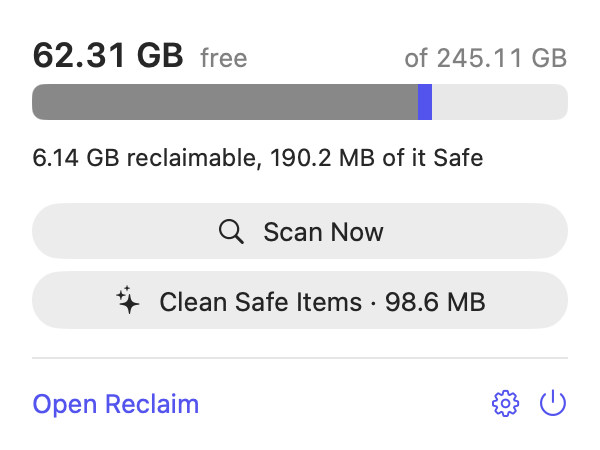
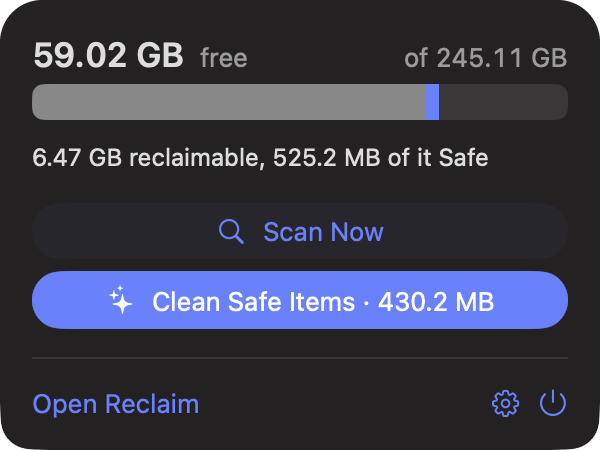
- Free space and a small storage bar, with what the last scan found.
- Scan Now starts a scan without opening the window.
- Clean Safe Items deletes every Safe suggestion Reclaim can delete, then shows a notification with the space freed.
- Open Reclaim, Settings and Quit.
Hide it with Show Reclaim in the menu bar. Scheduled scans and alerts keep running while Reclaim is open, even with its window closed.
Scheduled scans
Choose Every day or Every week in Automation › Scan automatically. A scan runs when one is due, including right after your Mac wakes, and by default only sends a notification such as “12.4 GB can be reclaimed, 3.1 GB of it Safe.”
Auto-clean
Off by default, and the only time Reclaim deletes something nobody ticked at that moment. When Delete Safe items untouched for a day is on, each scheduled scan deletes:
- only Safe items, never Rebuild or Personal ones;
- only items you can delete without the helper;
- only items where nothing inside changed for 24 hours, so a project you are working in keeps its caches.
It follows your Trash setting, is recorded in the history, and a notification tells you what was freed.
Low-space alerts
Reclaim checks free space every few minutes and notifies you once when it drops below your threshold, 10 GB by default, and again only after it has recovered and dropped again.
Open at login
Turn on Open at login in Automation so the menu bar and schedules are always running. If macOS asks you to approve it, Reclaim shows a button to Login Items in System Settings.
Notifications
The first time you turn on a schedule or low-space alerts, macOS asks whether Reclaim may send notifications. You can change this later in System Settings › Notifications.
System and the helper
Delete root-owned system caches, logs, sudo leftovers and local Time Machine snapshots on Mac with Reclaim's optional, locked-down helper.
Settings
Every Reclaim setting explained, from Trash mode and scan scope to thresholds, excluded folders, the menu bar, schedules, auto-clean, low-space alerts and accent colour.