Disk Map and duplicates
See where your Mac's disk space went with a size-sorted Disk Map, find large files, and remove duplicate files with APFS clones handled correctly.
Disk Map
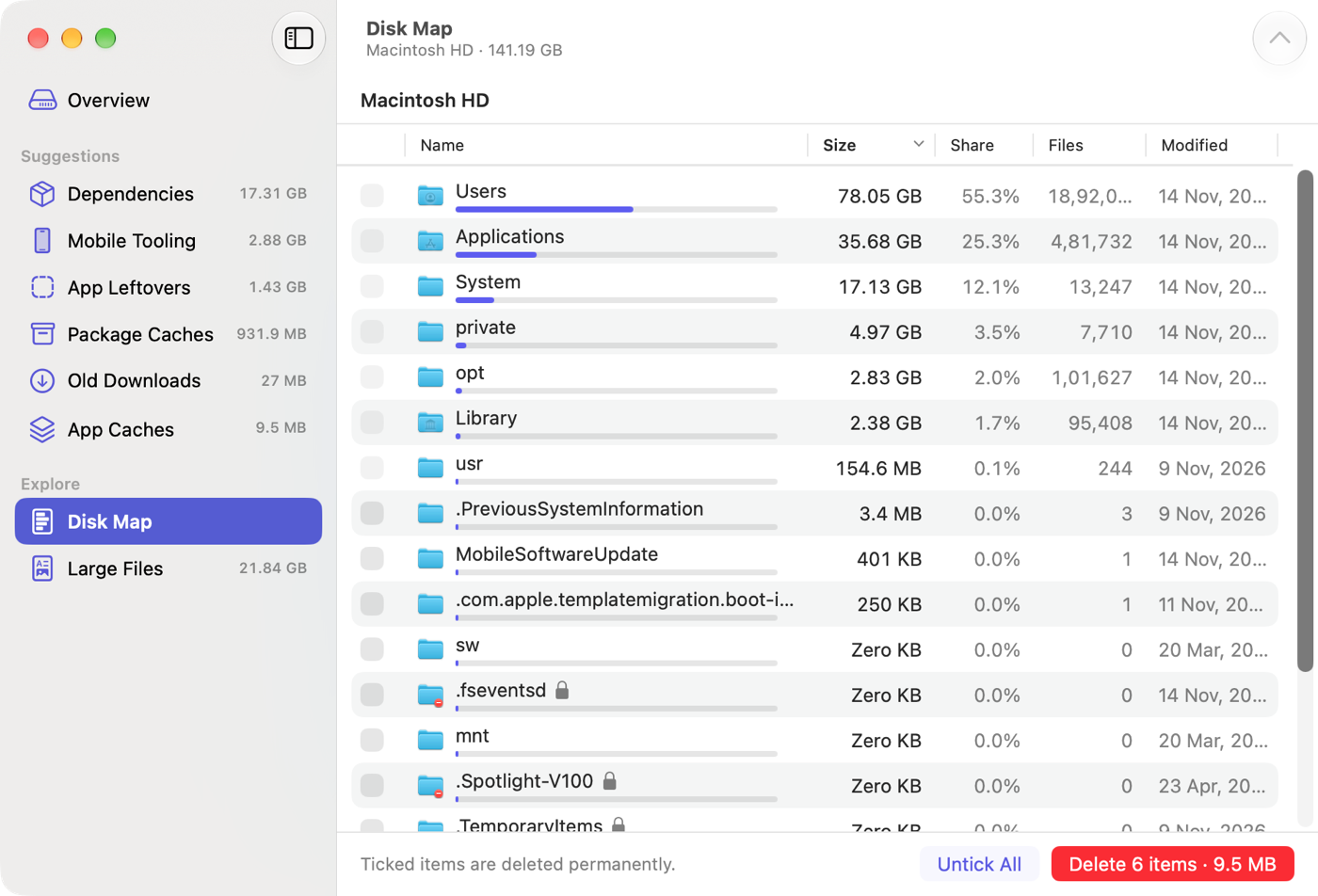
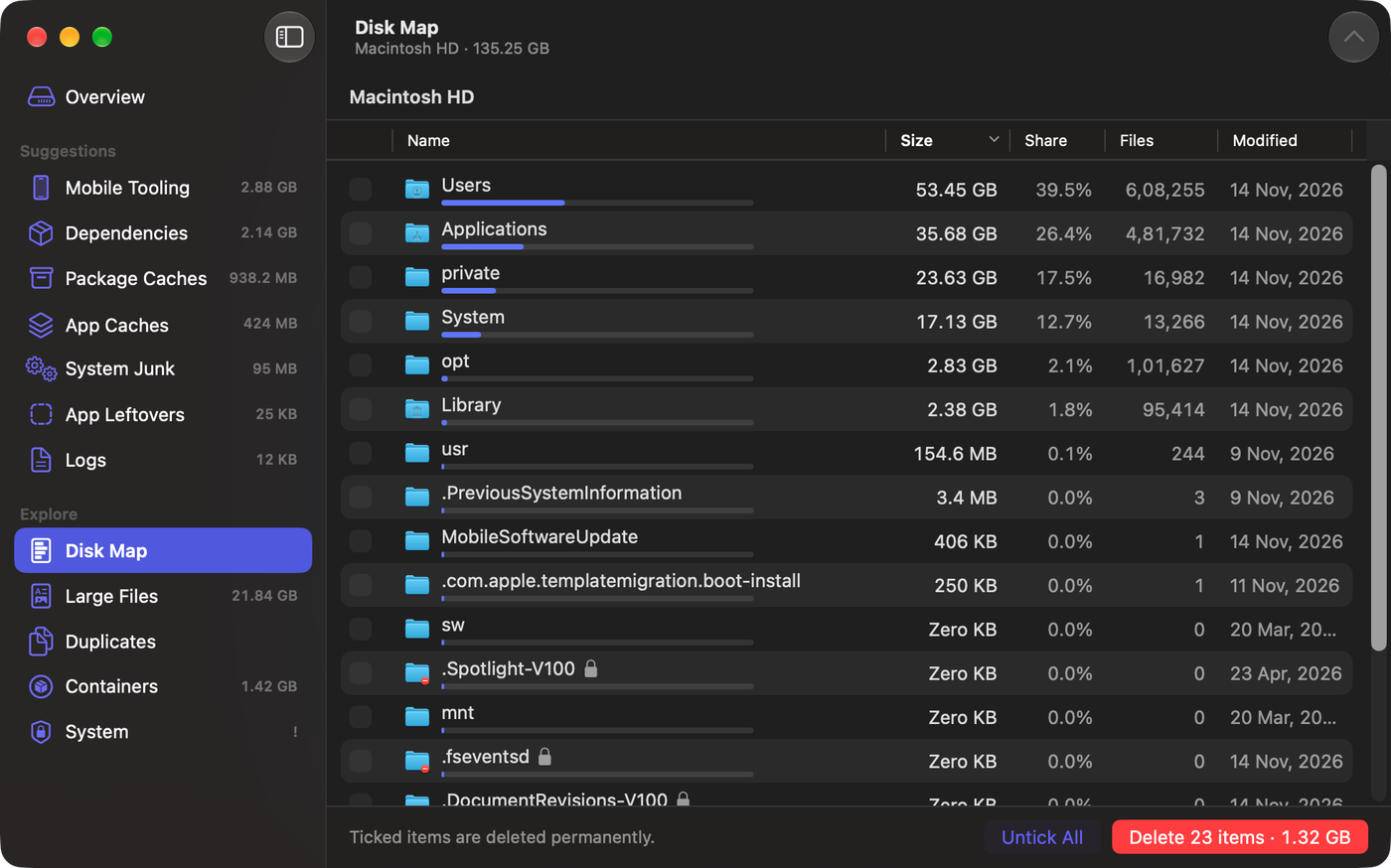
The whole scan as folders and files, largest first. Each row has a bar for its share of the folder you are in, its size, the number of files inside and when anything in it last changed.
- Go deeper: double-click a folder, or right-click it and choose Open.
- Go back: click any folder in the trail at the top, or press ⌘ ↑.
- Tick anything that is not protected. Protected folders, such as the top level of the disk or your home folder, have a dimmed checkbox.
- Badges mark folders a rule already suggests. A lock means a folder could not be read, so its size is a lower bound.
- Small files under 1 MB are not listed one by one; their total appears below the list.
Large Files
Files of 500 MB or more that no other suggestion covers. Files inside apps and photo libraries are left out, because deleting part of a bundle breaks it. Everything here is Personal: only you know whether you still need it. Change the size in Scanning › Large files from.
Duplicates
After a scan, open Duplicates and click Find Duplicates. Reclaim compares files of 1 MB or more and lists only files whose contents are identical, byte for byte.
How duplicates are found
By size. Files with a unique size cannot have a twin, so they are dropped first.
By their edges. The first and last 64 KB of the remaining files are compared.
By full contents. Only the candidates left are read in full and compared by SHA-256. On a typical Mac this takes seconds.
What it leaves out
- Anything inside apps, libraries and other bundles.
- Hidden folders such as
~/.vscode, and installed packages such asnode_modulesandsite-packages: copies there belong to tools, and deleting one can break them. - App and system data in
~/Library,/Libraryand/Users/Shared. - Anything another suggestion already covers.
Hard links and APFS copies
Hard links are one file with several names, so they never appear as duplicates. APFS copies, such as those made with Finder's Duplicate, can share storage with the original. Reclaim detects them from where their data sits on disk and marks them Shares storage. Deleting one frees almost nothing, so they don't count towards the reclaimable total.
Choosing which copy to keep
Nothing is ticked for you. The Keep menu in the toolbar ticks all but one copy in every group shown:
- Keep Oldest Copy or Keep Newest Copy, by modification date.
- Keep the Copy in a Folder…: in groups with a copy in the folder you choose, that copy is kept.
- Untick All Copies.
Filter first to apply Keep to only some groups. Right-click a copy for Keep Only This Copy.
Scan and clean
How to scan your Mac with Reclaim, read the Overview, review suggestions by safety level, and delete caches, node_modules and other junk in one click.
Docker and OrbStack
Free disk space used by Docker Desktop, OrbStack and Colima. Reclaim removes build cache, unused images, stopped containers and volumes with Docker's own commands.