Scan and clean
How to scan your Mac with Reclaim, read the Overview, review suggestions by safety level, and delete caches, node_modules and other junk in one click.
Scanning
Click Scan on the Overview, or press ⌘ R. Reclaim reads every folder it is allowed to and shows a live count of files and bytes. A full Mac takes about a minute; click Stop at any time.
- Whole disk by default. To scan only your home folder, change Scanning › Scan.
- Real sizes. Reclaim counts the space files actually use. A 32 GB disk image holding 1 GB counts as 1 GB, and a file with several hard links counts once.
- One disk only. External drives and other volumes are never scanned.
- Without Full Disk Access, Desktop, Documents, Downloads, iCloud Drive and other apps' data are skipped, so macOS doesn't pause the scan to ask about each one. Turn it on.
The Overview
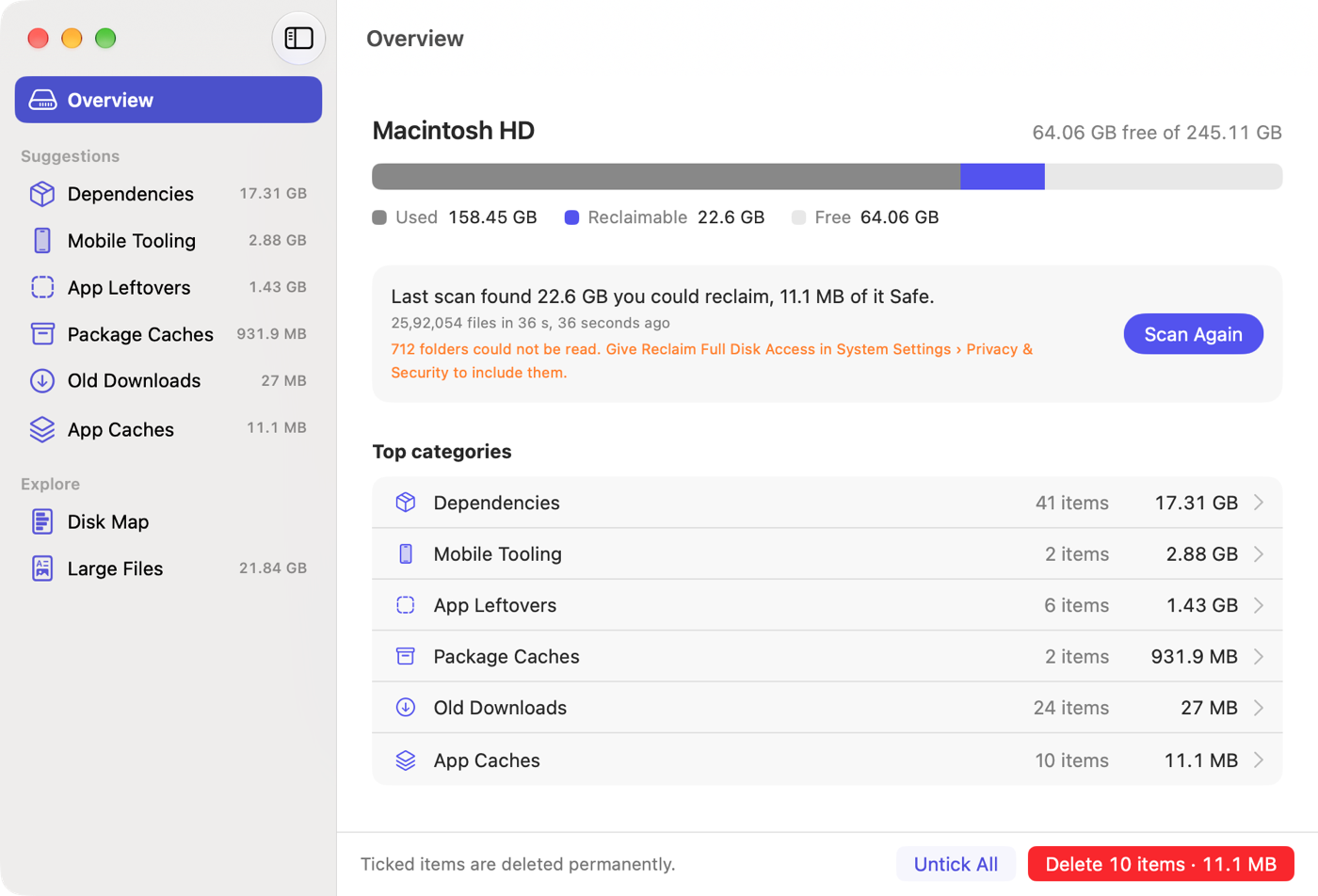
- Storage bar: used space, the part Reclaim suggests deleting in your accent colour, and free space.
- Last scan: how much you could reclaim, how much of it is Safe, and how long the scan took.
- Top categories: each kind of suggestion with its size. Click one to open it.
Reviewing suggestions
The sidebar has one entry per kind of suggestion, with its total size. What it finds lists every rule. Each list shows a checkbox, the item's name and folder, its size, its safety level and when anything inside it last changed.
- Sort by clicking a column header, and filter with the search field (⌘ F).
- Select All Safe ticks every Safe item in the list; Deselect All unticks the list.
- Right-click rows to tick or untick several at once, or to reveal one in Finder.
- The inspector on the right explains the selected item: what it is, why it is suggested, what happens after deleting it, and where it is.
Safety levels
| Level | Meaning | Ticked for you |
|---|---|---|
| Safe | Rebuilds itself; nothing for you to do. Build caches, app caches, logs, emulator snapshots, the Trash. | Yes |
| Rebuild | Comes back after a reinstall or download, such as npm install or composer install. | No |
| Personal | Your data, reported so you can decide: old downloads, large files, duplicates, emulator user data. | No |
To stop Reclaim ticking Safe items after each scan, turn off Tick Safe items after each scan.
Deleting
Whenever something is ticked, a bar at the bottom shows how many items and how much space, such as Delete 23 items · 31.4 GB. Ticks carry across every list, the Disk Map, Duplicates and Containers, and an item inside a ticked folder is never counted twice.
There is no confirmation
A sheet shows progress, then a summary of what was freed and anything that could not be removed, with the reason:
- Belongs to another user, such as root: files created with
sudoor by the system. The helper can delete these. - It no longer exists: something else removed it after the scan.
- Protected: one of the folders Reclaim never deletes as a whole. See the FAQ.
Lists and the Disk Map update straight away; no rescan is needed.
History
Every run is recorded: when, what was deleted or moved to the Trash, its size and anything that failed. The log is kept at ~/Library/Application Support/Reclaim/history.jsonl.
Keyboard shortcuts
| Shortcut | Action |
|---|---|
| ⌘ R | Scan |
| ⌘ ⌫ | Delete ticked items, with no confirmation |
| ⌘ F | Filter the current list |
| ⌘ ↑ | Enclosing folder in the Disk Map |
| ⌘ , | Settings |
Install
Download the Reclaim disk image for Mac, open it through Privacy & Security the first time, and give it Full Disk Access. Plus updating, uninstalling and building from source.
Disk Map and duplicates
See where your Mac's disk space went with a size-sorted Disk Map, find large files, and remove duplicate files with APFS clones handled correctly.